
Overview
The Trella Health Support team is here to help you with account issues, technical problems, and pretty much anything else related to all modules in the Trella platform. Questions of product content or usage are welcome. We want to help you to get the most out of your use of all of our products.
 In this article
Everything you need to know about how and when to make contact with the Trella Health Support team.
- Operating Hours
- How to make contact with Support
- Internal to the Trella Health Help Centers
- Through the Trella Health Resource Center - in each product
- CRM Mobile - Support access and Chat
- Your Ticket History - Viewing your support history
Operating Hours
The Support team is at their desks and ready for action from 8:00 AM Central time through 5:00 PM Central time. Of course, you can submit e-mail requests or requests through the Support widget or the Trella Resource Center at any time.
 Trella Health Support is not available on national holidays.
Trella AI Agent
Trella Health uses an AI Agent to provide a first pass answer to any inquiries.
|
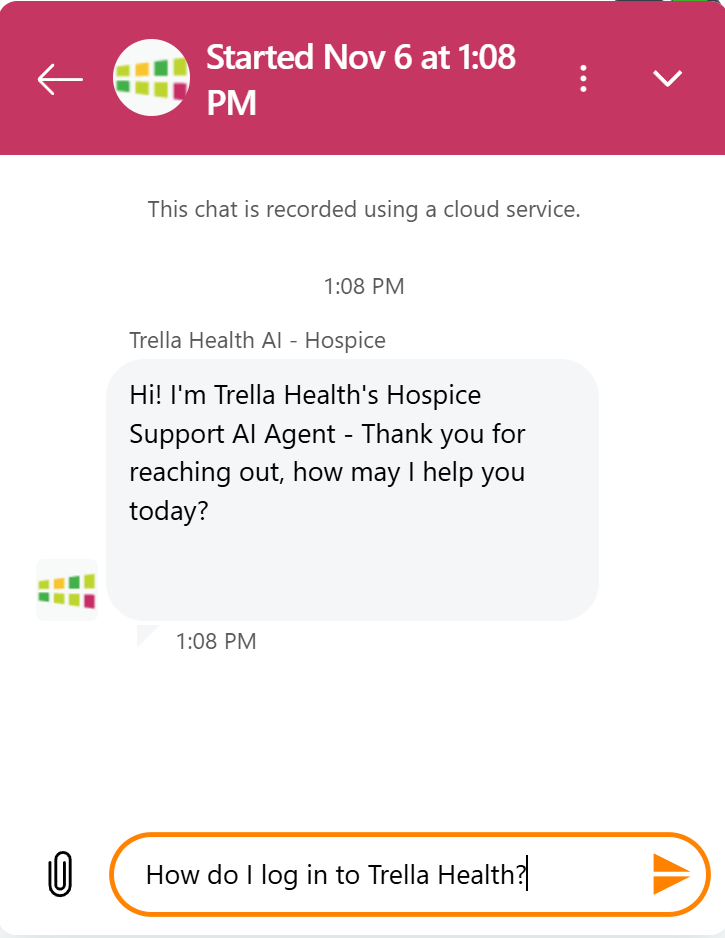
When you first open the support interface in the Resource Center, the AI Agent will prompt you to ask a question.
Click the split triangle icon to the right of the field to submit your request. |
 |
|
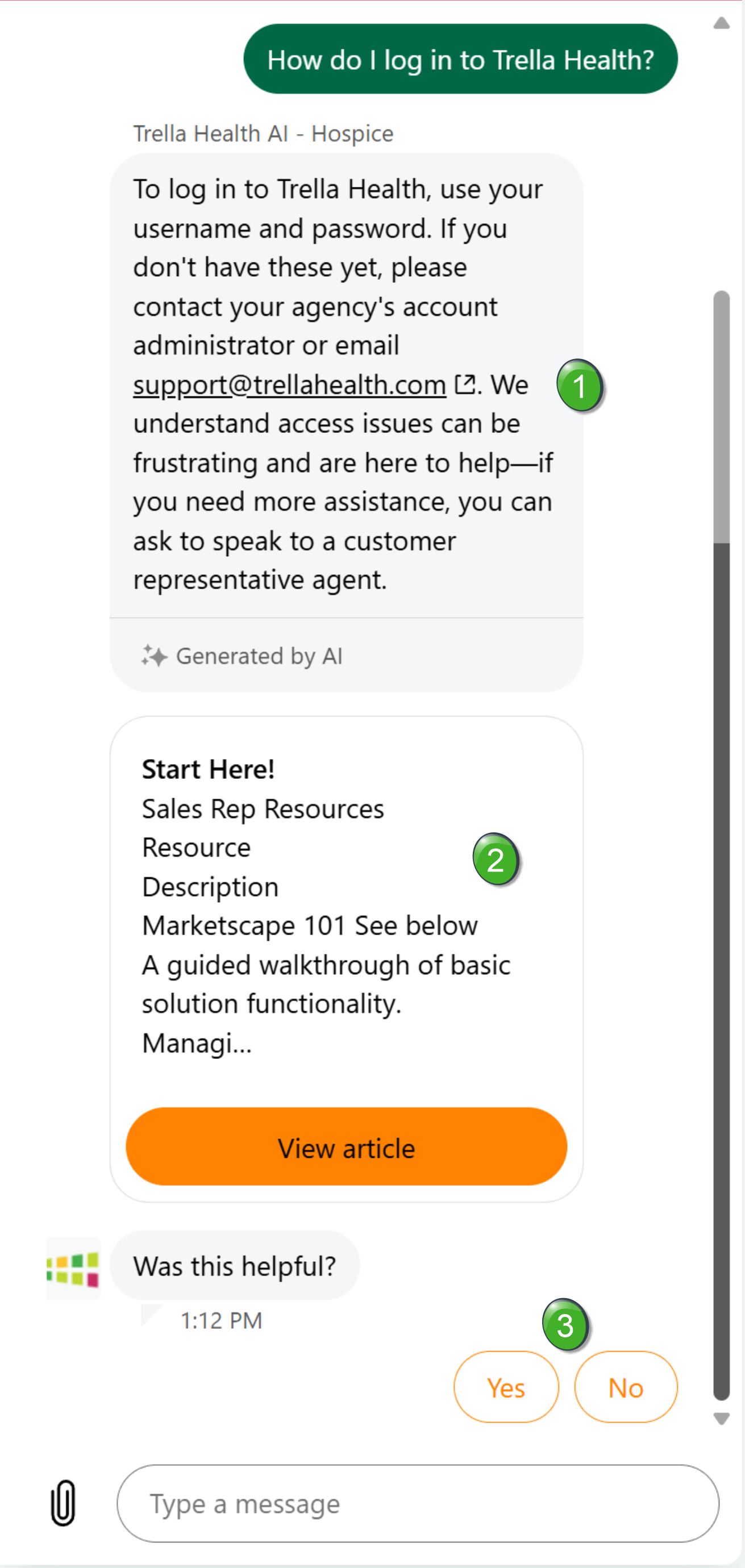
The AI will attempt to answer your inquiry. There are three sections to the AI response
|
|
| Your options change depending on your answer. | |
If you answer, "Yes" |
If you answer, "No" |
|
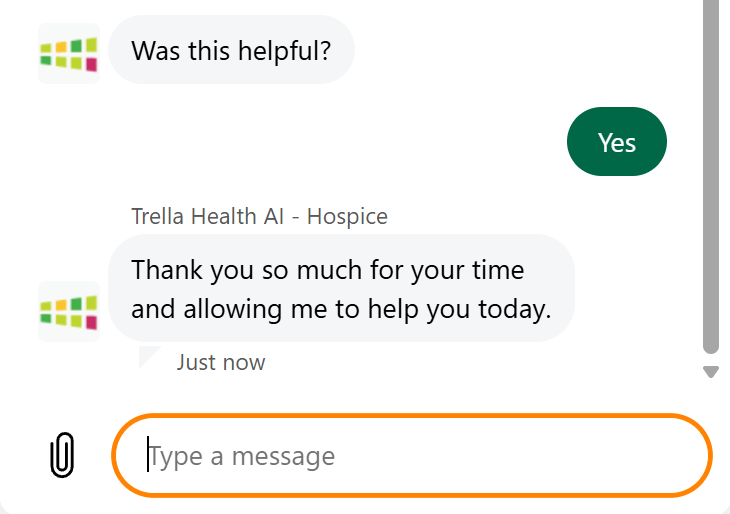
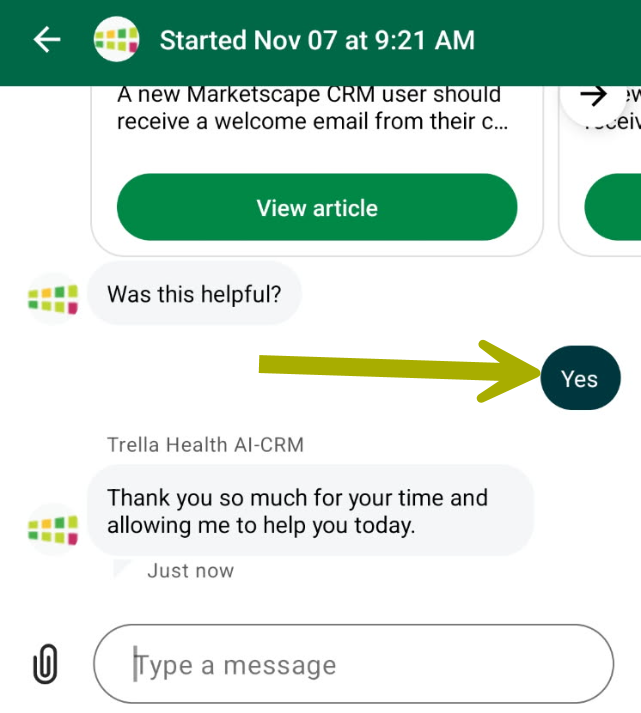
The AI Agent will thank you. You can then ask another question by filling out the "Type a message" field.
|
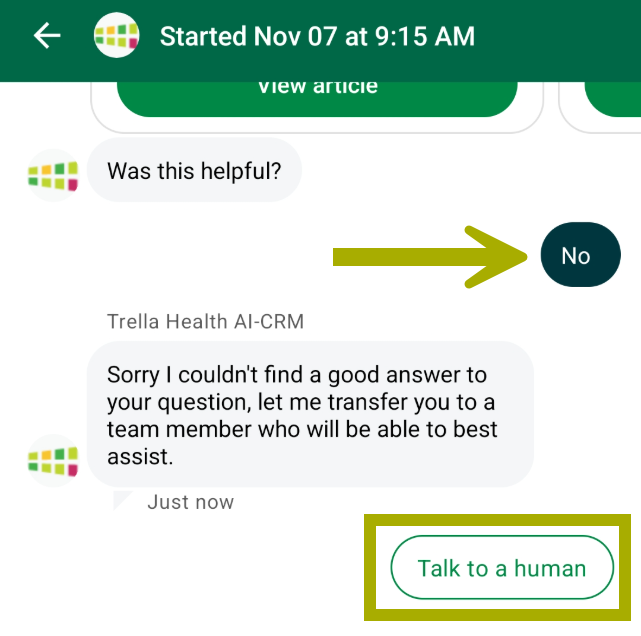
The AI Agent will apologize for not satisfying your inquiry and will offer you the opportunity to chat with a human agent.
|
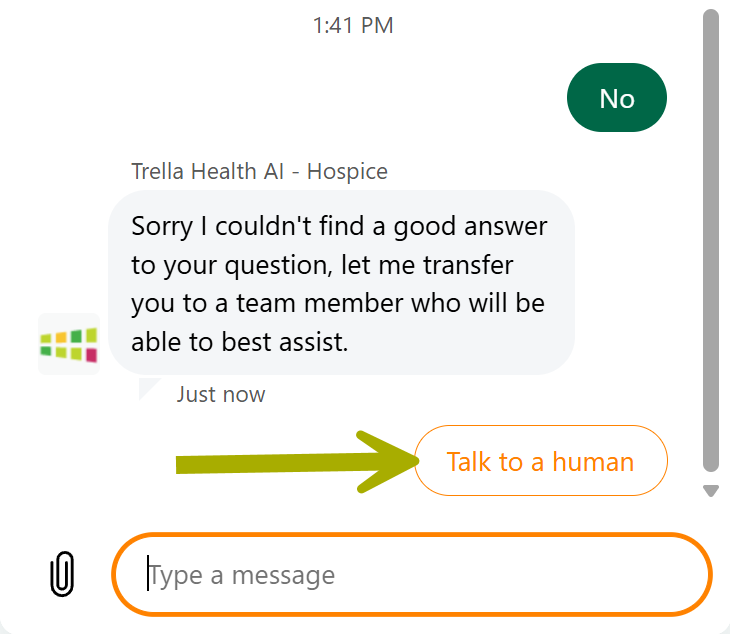
 Details
- The AI Agent is available 24/7/365 to answer questions.
- The AI Agent is prioritized in the interface in order to let the AI make an effort to answer your question before directing you to a live agent.
How to make Contact with Support
 Email
Email
When you send an email to Support@TrellaHealth.com our ticketing system automatically creates a Support ticket. The Support team will review your ticket and get in touch.
Through the Trella Health Help Centers
If you are looking at any of the Trella Health Help Centers, there are a couple channels that will allow you to reach the Support team.
Submit a Request
At the top right of every page in the Trella Health Help Centers there is a link to "Submit a request." (See image below.)
- Click the "Submit a Request" button
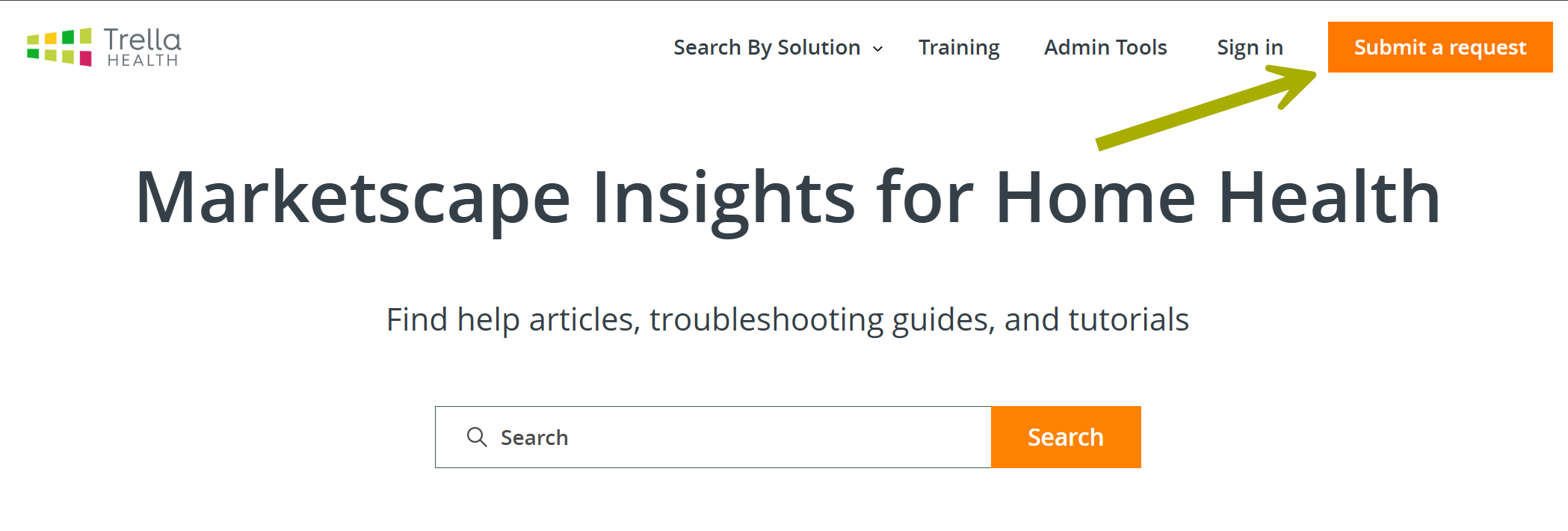
When you click the link, the following page will open:
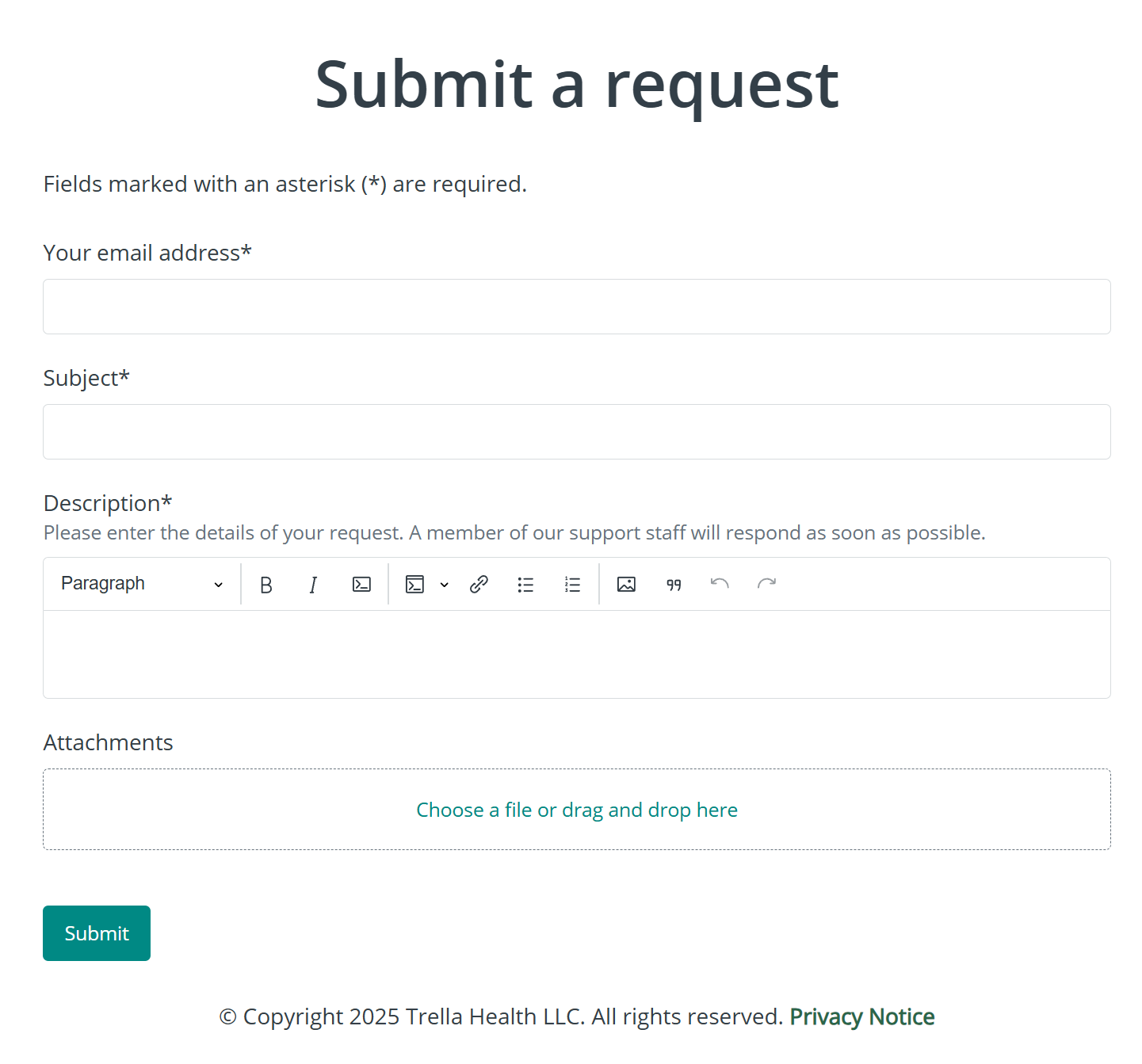
- Fill out the fields and click the "Submit" button.
This will open a Support ticket in the same way an email does.
Support Widget in the Help Center
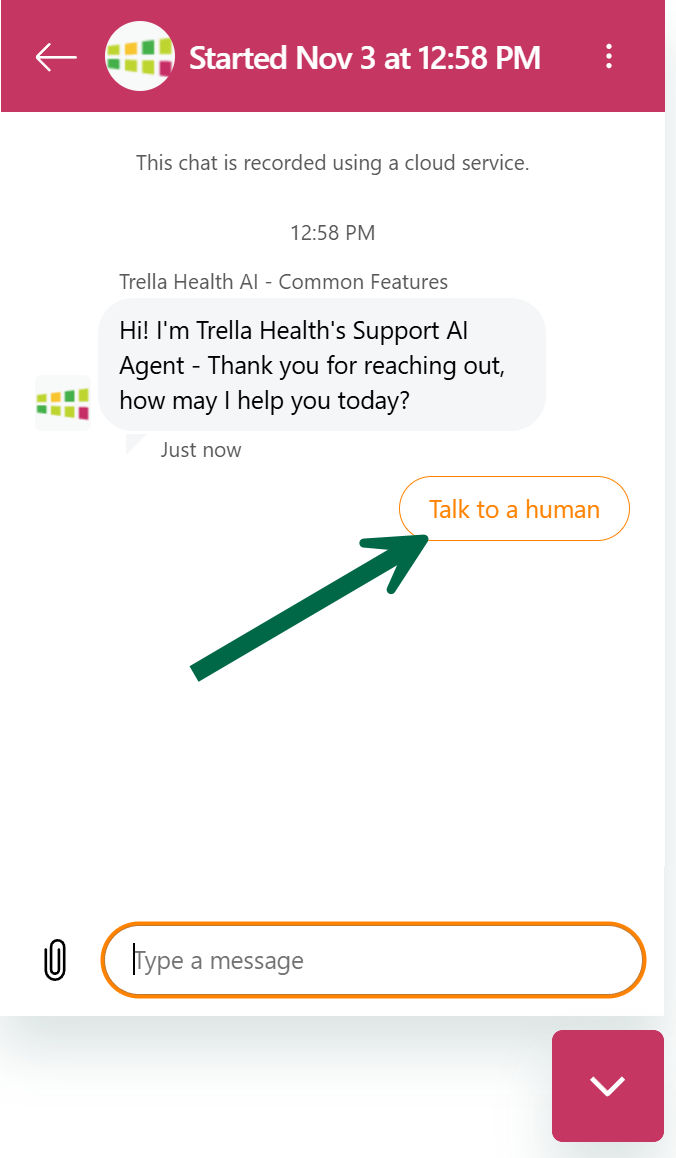
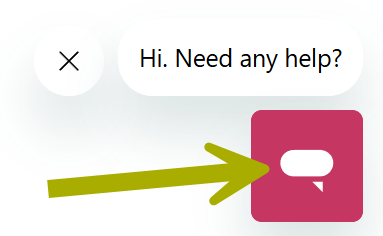
At the bottom right of every page in the Help Centers there is a widget you can click on to get in touch with Support.
Chat with Support
|
 |
|
A form opens that requests some basic information
|
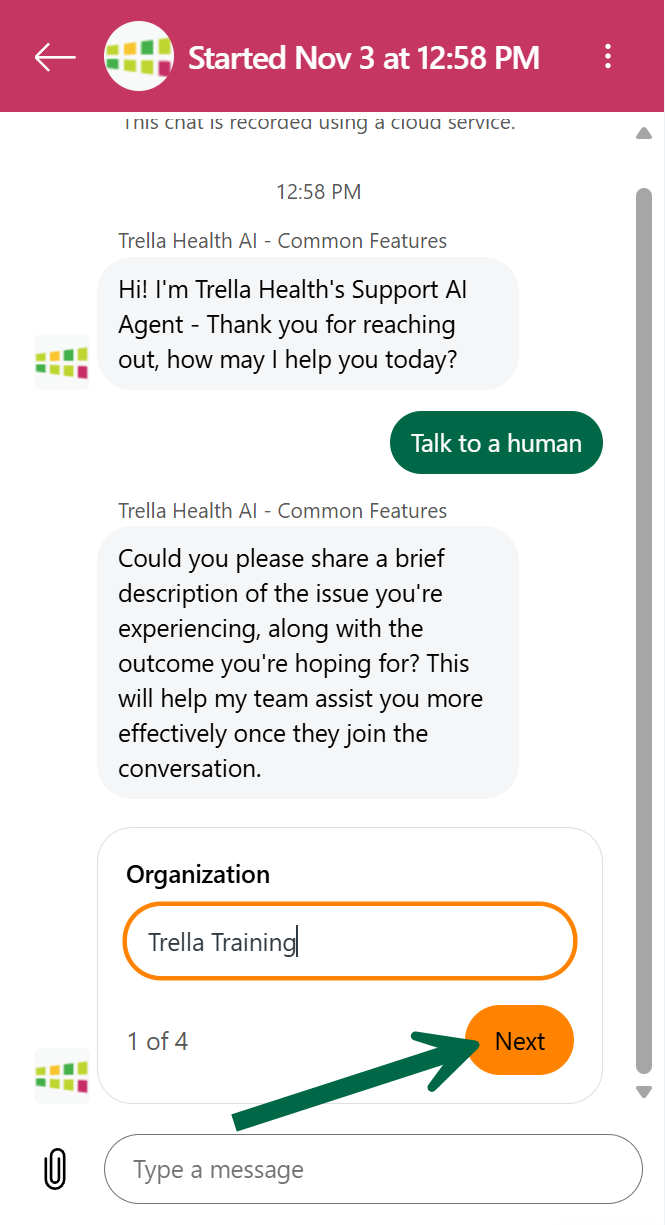 |
| Once you have filled out the information, click on the "Send" button to begin chatting with Support. | 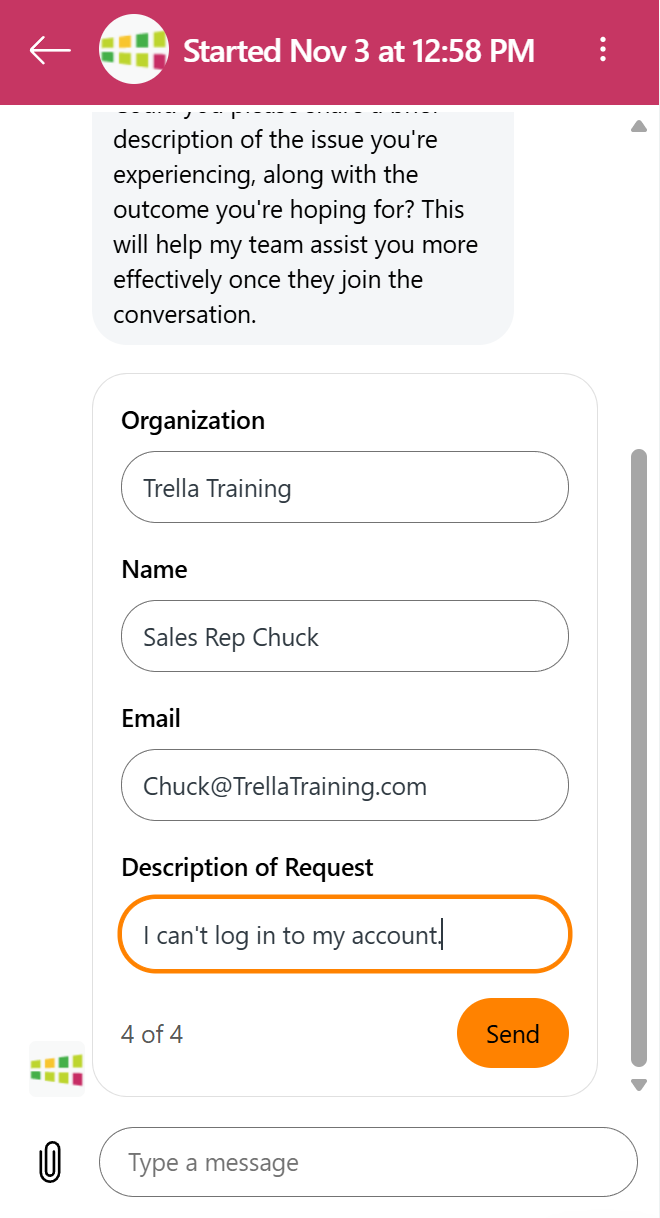 |
Another Avenue to Answers
Although this process will not get you in touch with Trella Support, you might find an answer to your question.
Ask a question
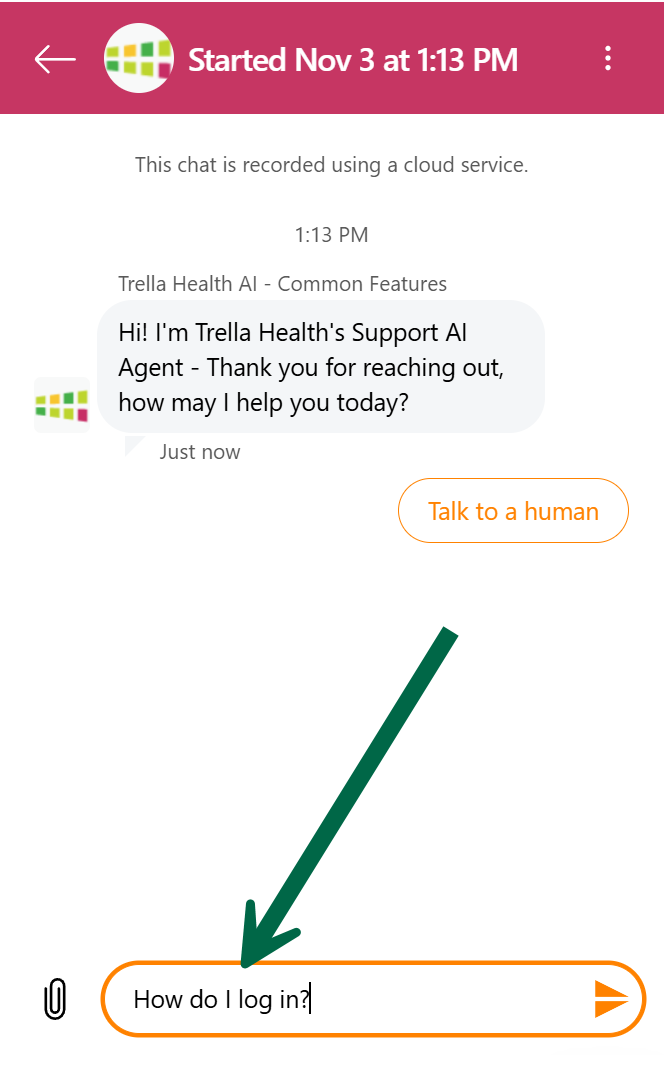
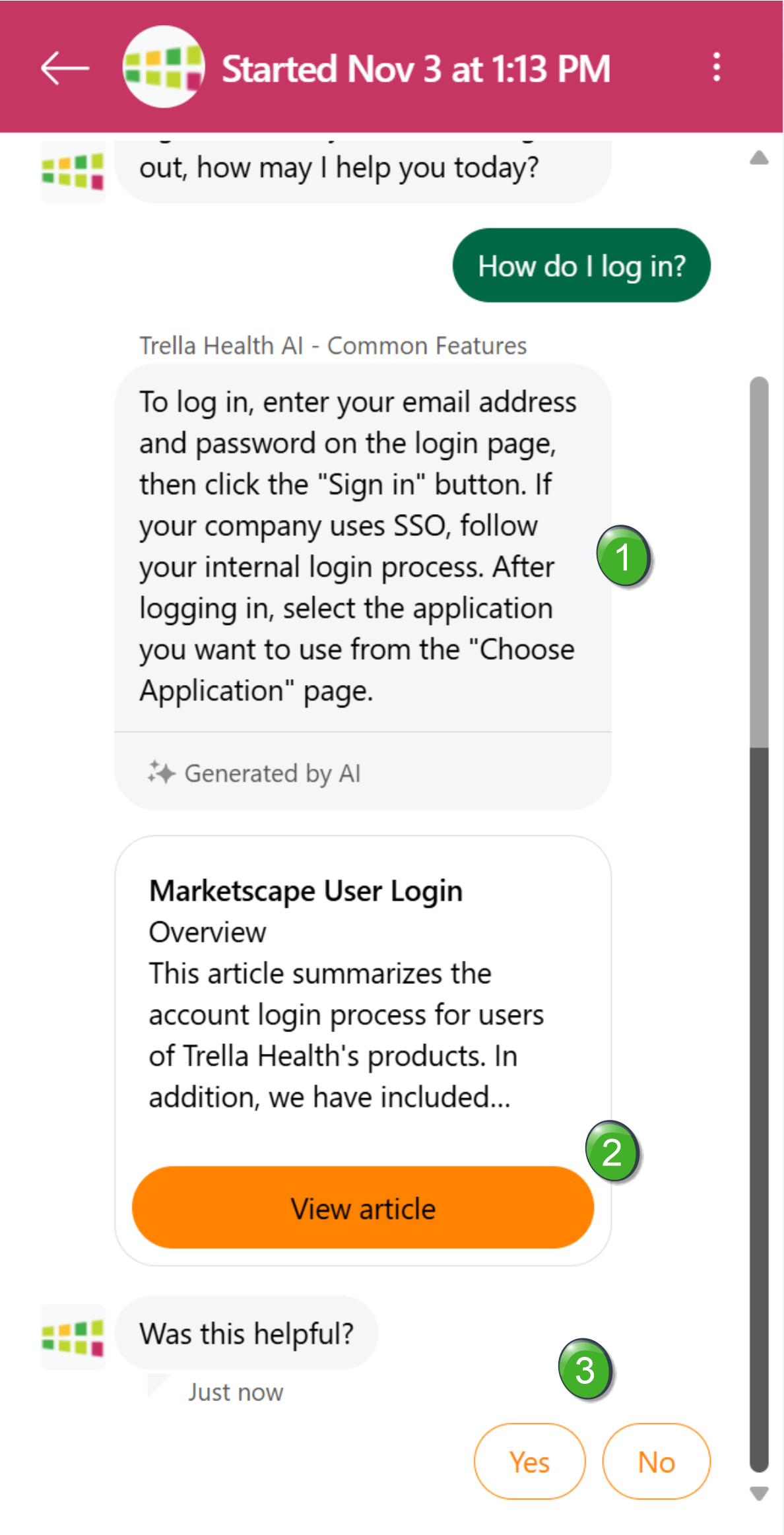
For this example, we typed a common question that the Support team is asked, "How do I log in?"
|
 |
|
The response to your question has three parts:
|
 |
|
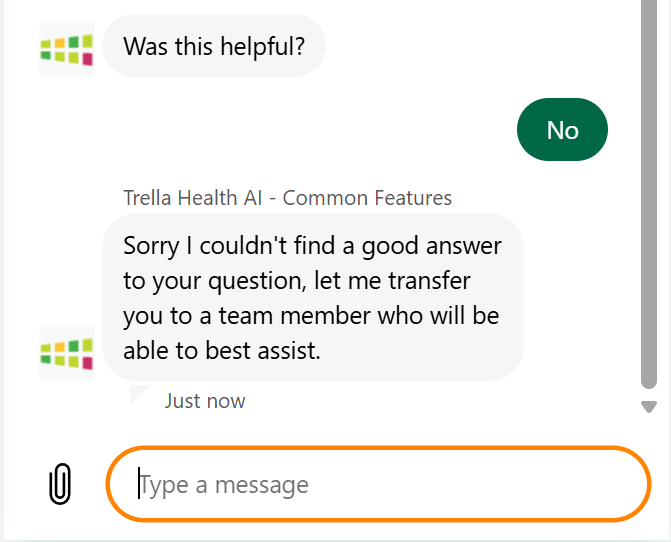
If the answers provided are not helpful, you will receive the response to the right. Type in your question again, and you will be taken to the Chat interface where you can communicate with a live Support representative. |
 |
 The Help Center AI provides a summary answer to your question.
  The second answer is a link to the article most likely to answer your question more fully, as determined by the Help Center AI.
 Third, you are given an opportunity to submit your assessment of the helpfulness of the answers provided above.
The Paper Clip!
If you click the paper clip icon at the bottom left of the interface, a dialog box will open that will allow you to send a file to the support team.
Through the Trella Insights Resource Center
Through the Trella Resource Center you can either submit a request to open a ticket, or begin a chat session.
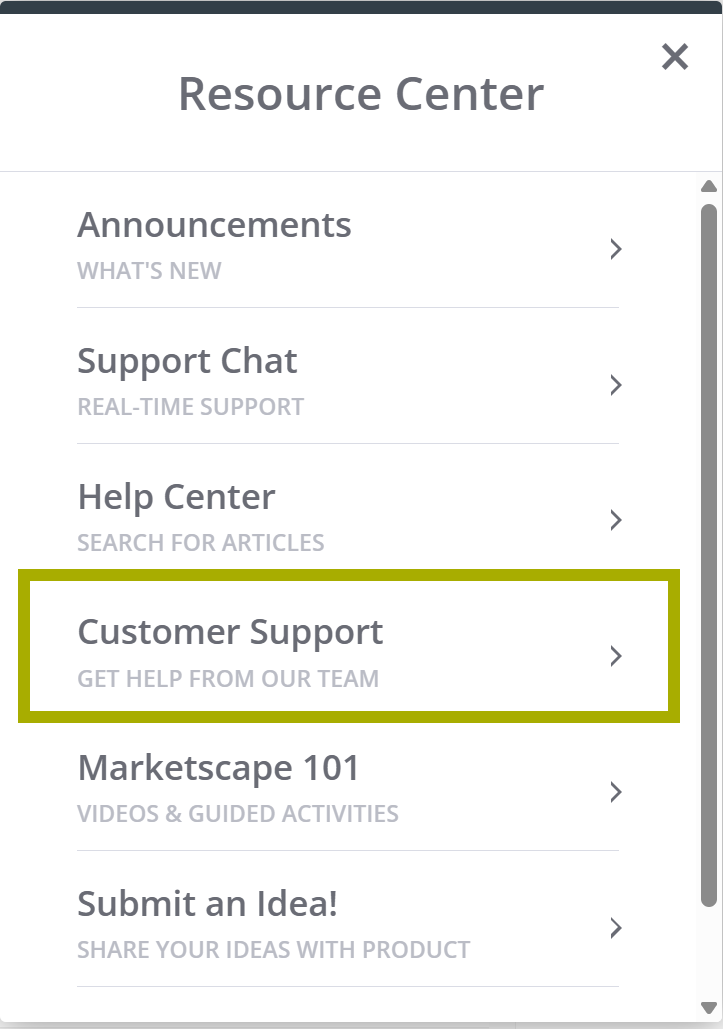
Submit a RequestAt the bottom right of every page in the Trella Insights modules, you will see a "?"
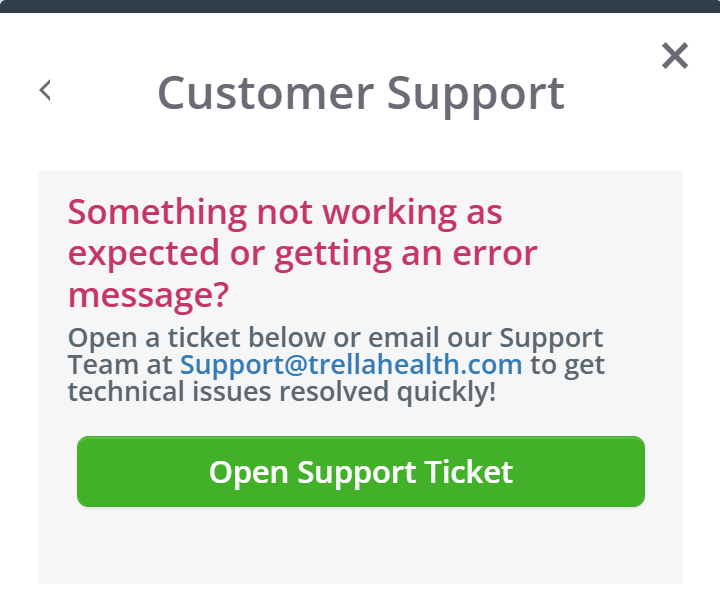
Clicking on the "?" will open the Trella Health Resource Center. Although there are other options, if you click on the "Customer Support" button, you will find a single option. Click on "Open Support Ticket," you will be taken to a form that you can fill out that will open a Support ticket. |
 |
 |
|
Fill out the form and click the "Submit" button. A support ticket will be created immediately. You will receive an email at the email account provided with a confirmation that the request has been submitted. |
|
|

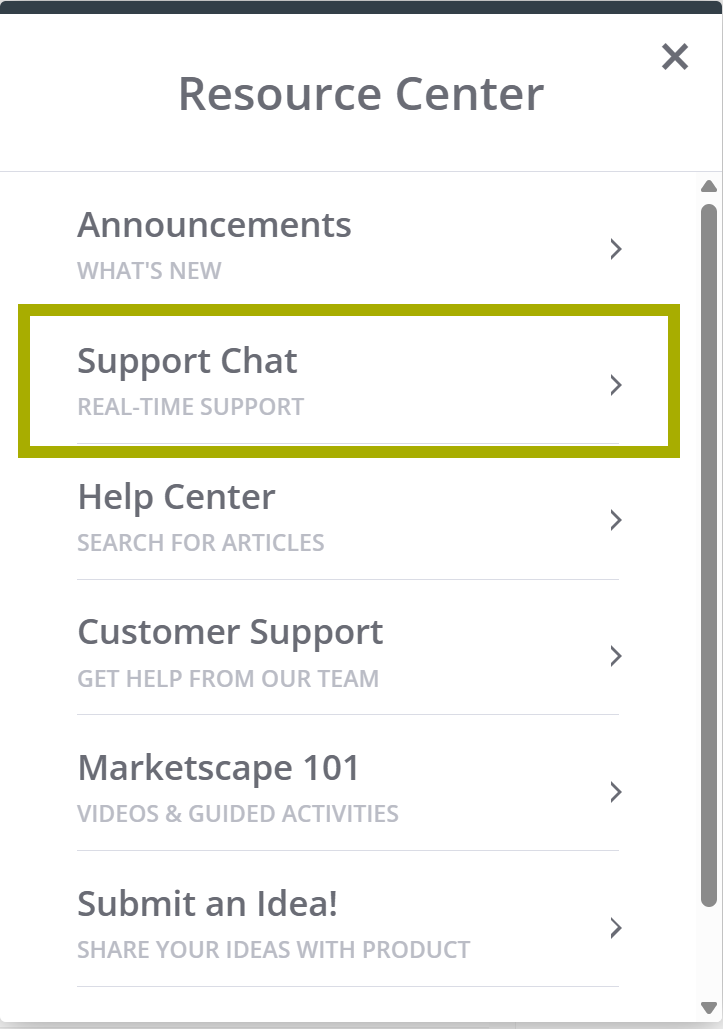
Start a Live ChatAt the bottom right of every page in the Trella Insights modules, you will see a "?"
Clicking on the "?" will open the Trella Health Resource Center.
|
 |
|
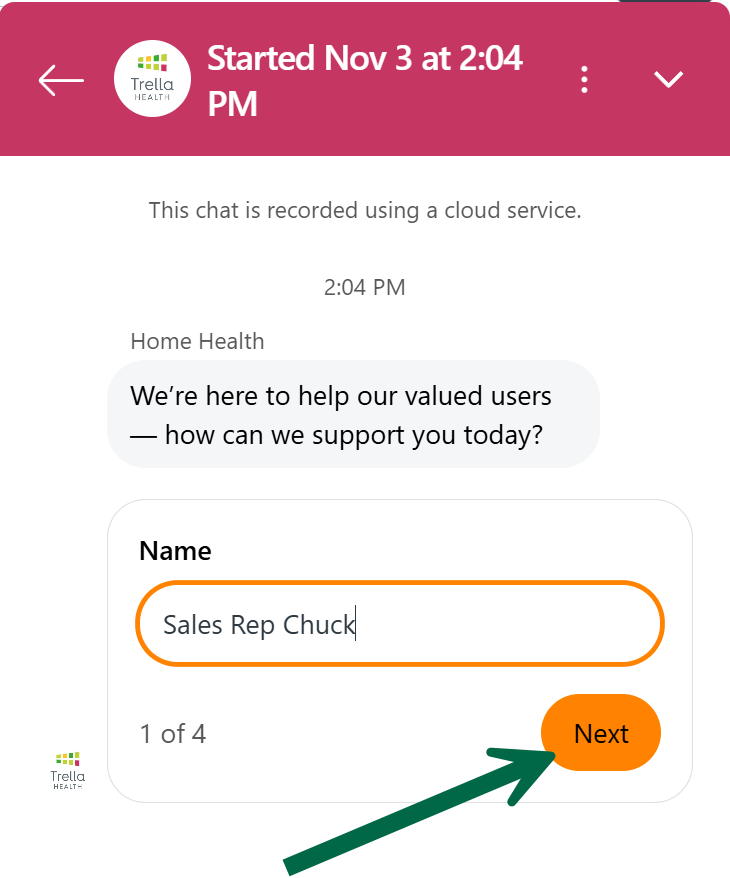
The interface shown at the right will appear. Fill out the four fields as requested.
|
 |
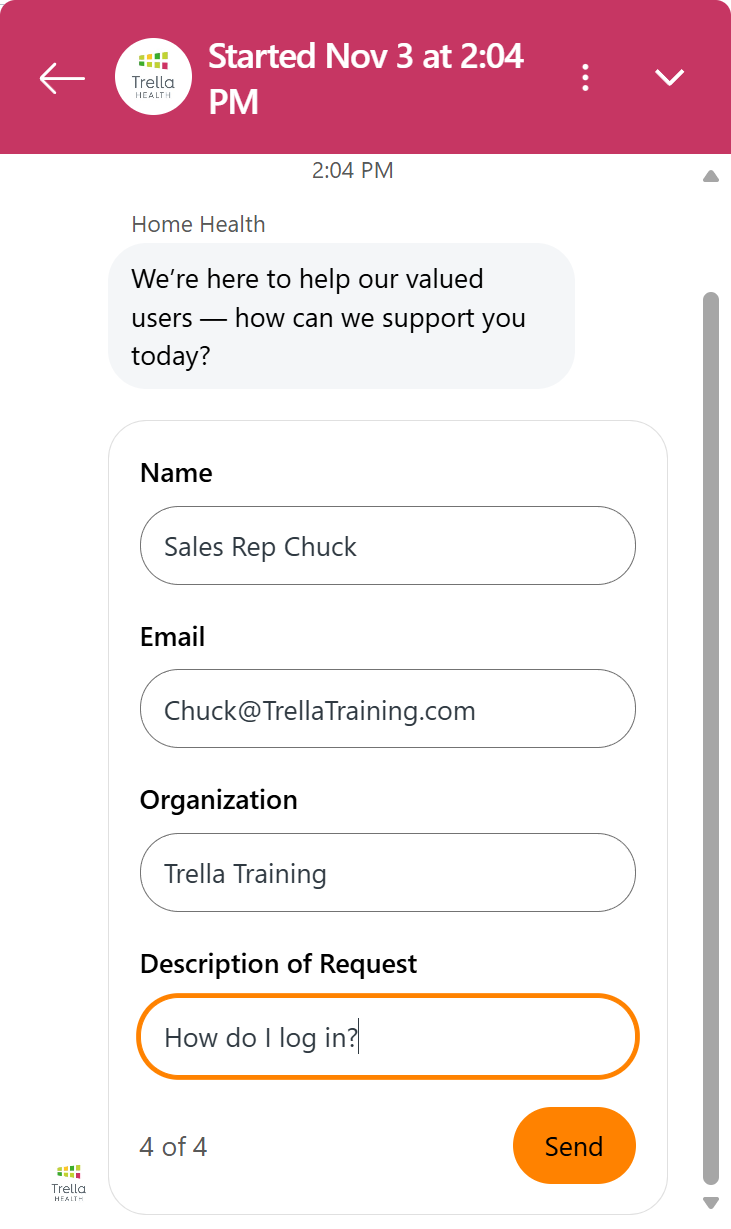
The live Chat interface will open and you will be able to chat with a Trella Health Support member. |
 |
CRM Mobile
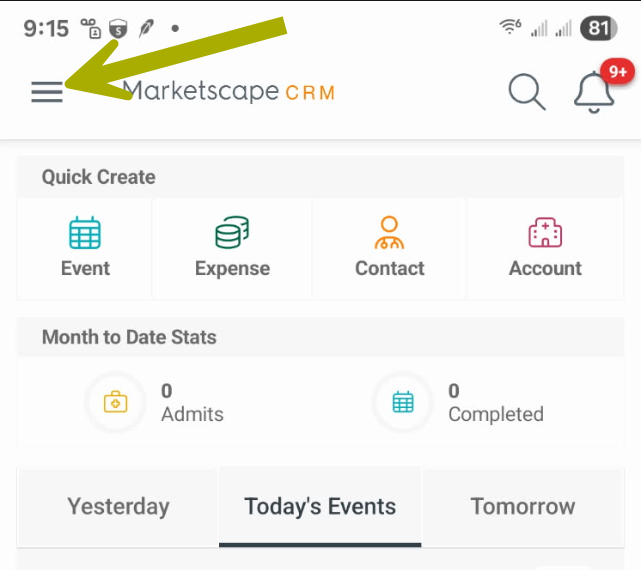
You have access to Support and Help Center resources from within the Trella CRM mobile application. Examine the details below to see how to access the resources.
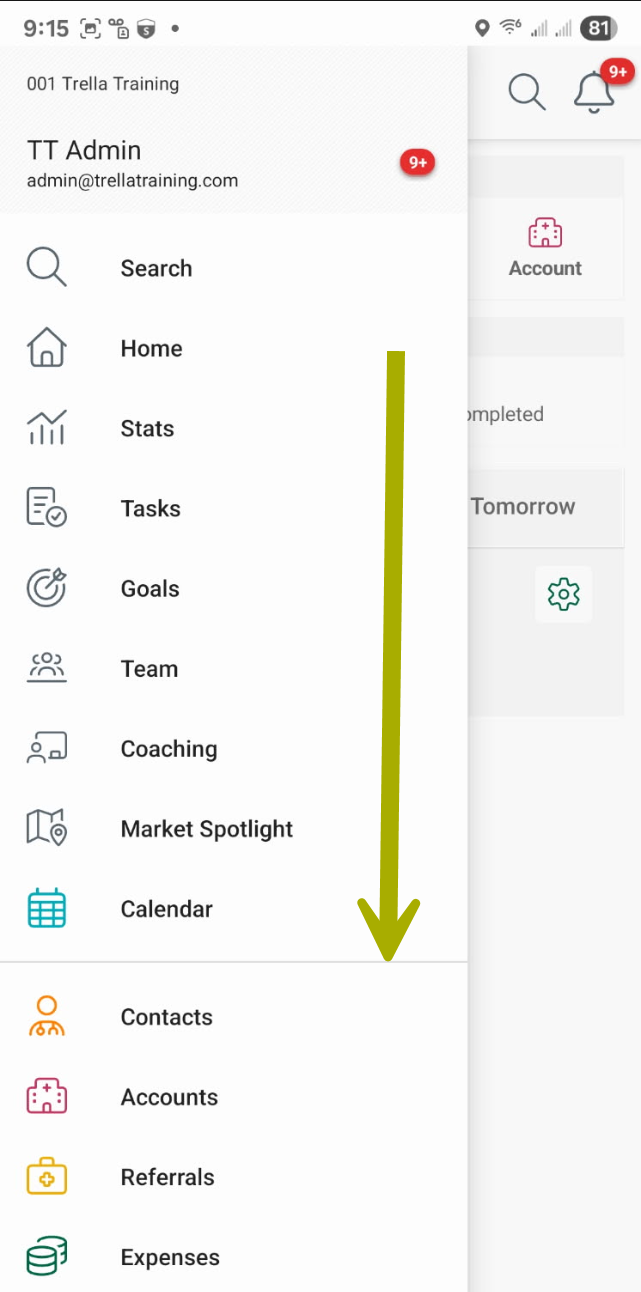
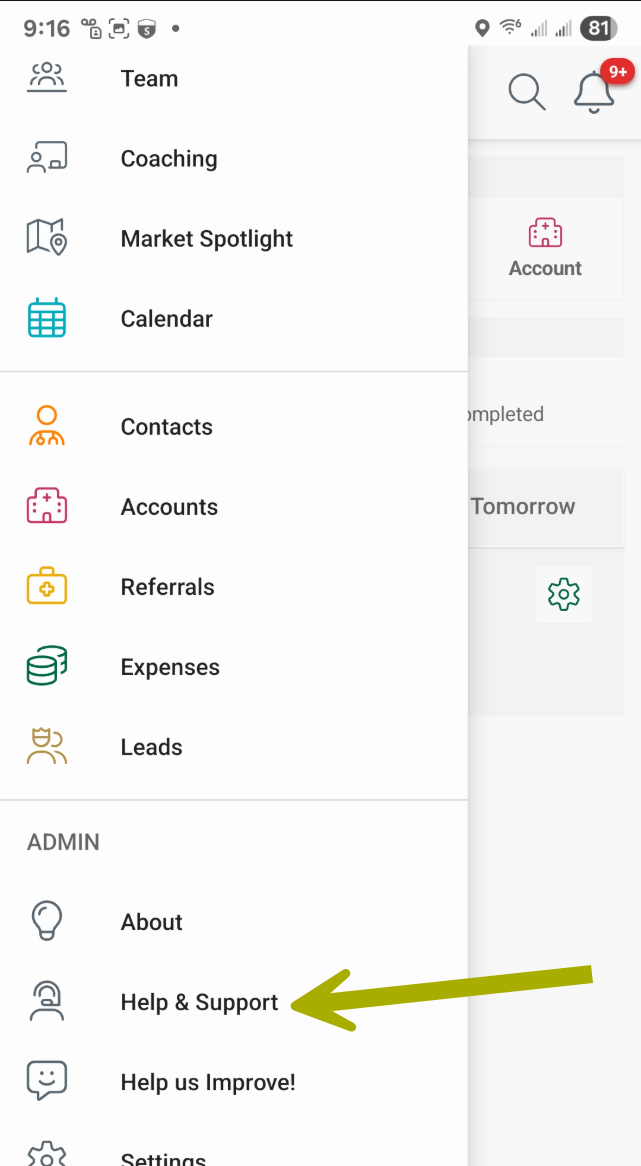
How to open the Help & Support page | |
|
|
 |
|
The Trella CRM menu opens from the left
|
 |
|
 |
|
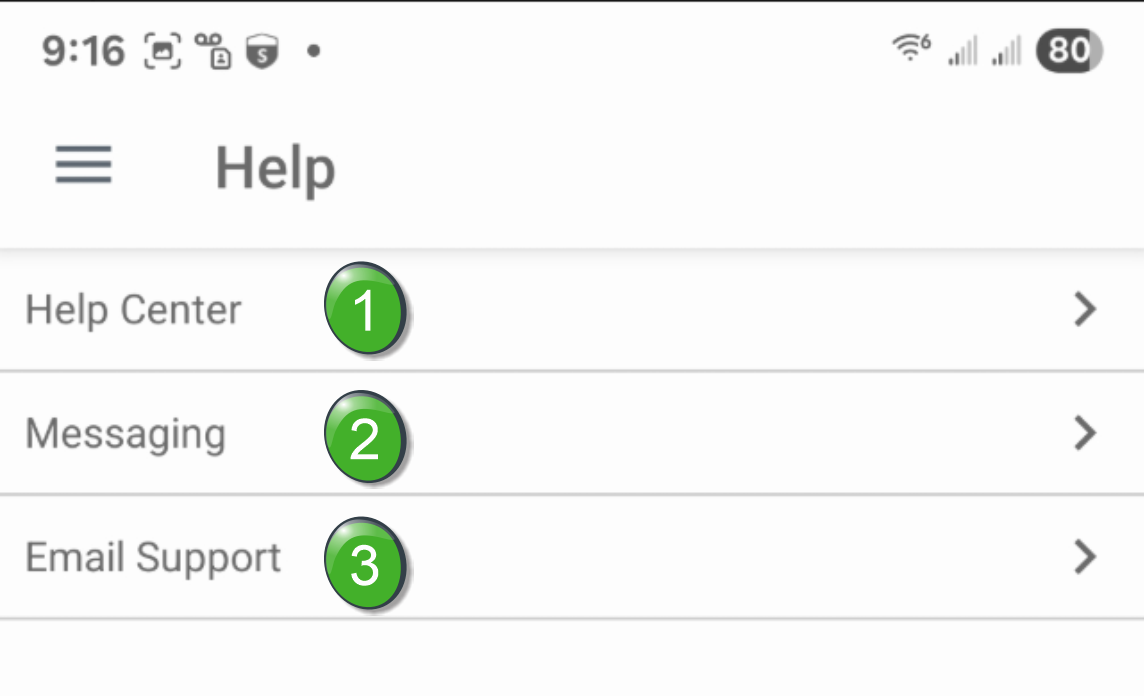
The Help page opens with the three options shown at right. The three Help page options are described below. |
 |
| |
|
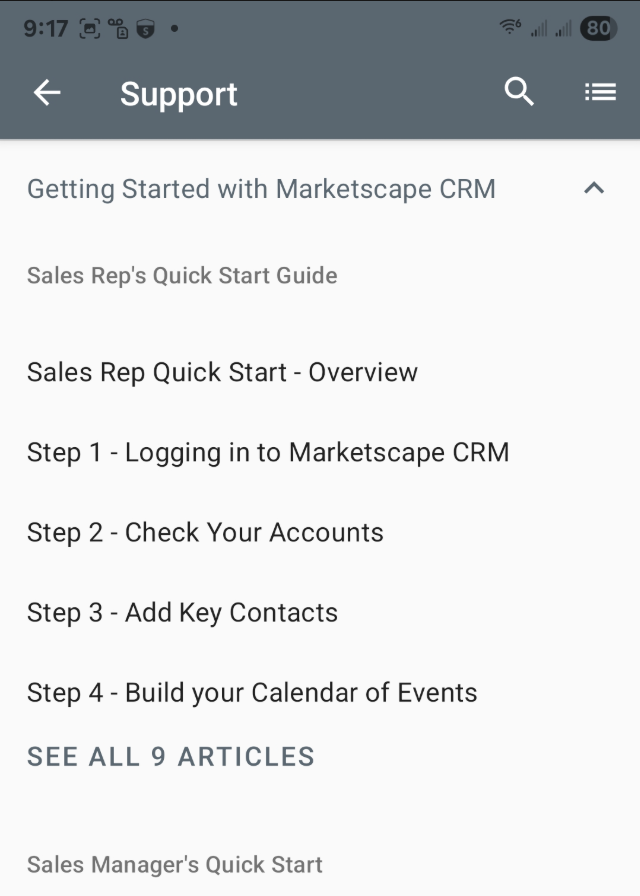
When you click on the "Help Center" option a new page will open that displays a list of articles from the Trella CRM Help Center.
|
 |
| |
|
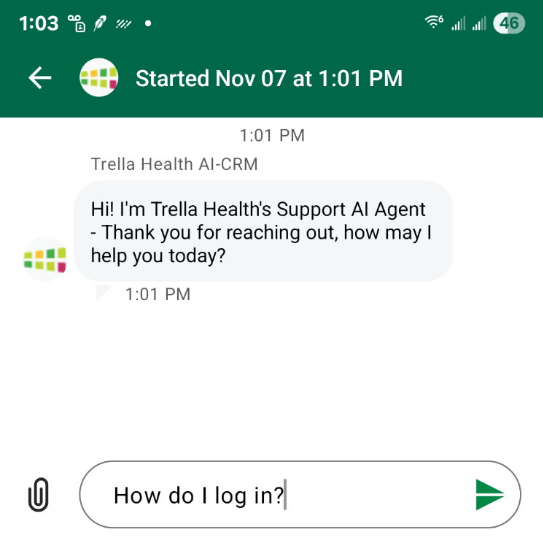
When you tap on the "Messaging" link, the Trella Health Chat interface and the AI agent will open and greet you with the question shown.
The sample question for this illustration shown to the right is "How do I log in?"
|
 |
|
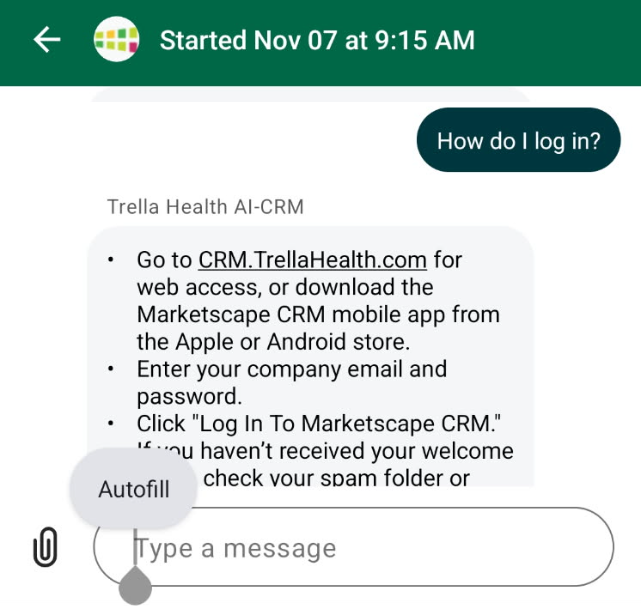
The Chat interface provides three responses to an inquiry First, the AI provides a summary of an answer to your inquiry. |
 |
|
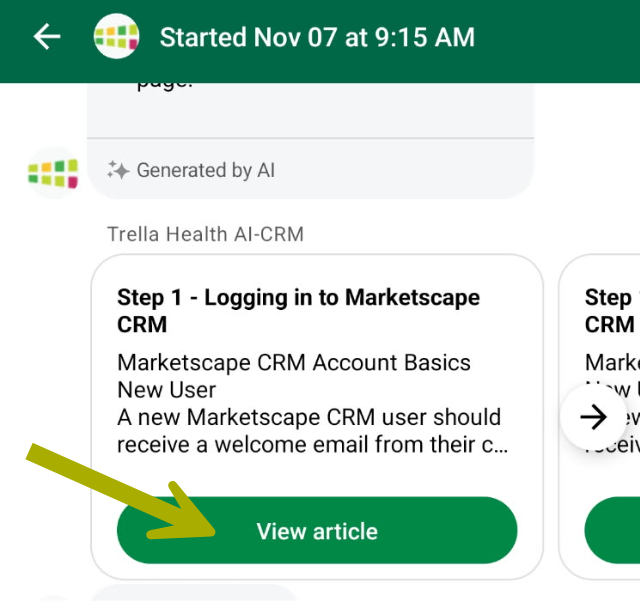
Second, the AI provides a list of articles that might provide a more detailed response to your inquiry.
|
 |
|
Third, the Chat interface allows you to evaluate the information provided by the AI agent
|
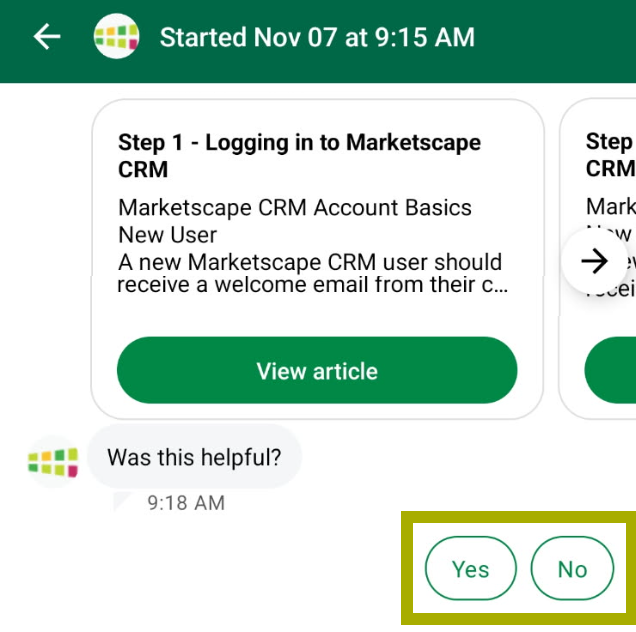 |
| Your options change depending on your answer. | |
If you answer, "Yes" |
If you answer, "No" |
|
The AI Agent will thank you. You can then ask another question by filling out the "Type a message" field.
|
The AI Agent will apologize for not satisfying your inquiry and will offer you the opportunity to chat with a human agent.
|
| |
| When you tap on the "Email Support" link, your mobile device will open your email application. When you submit an email to Support, a Support ticket will be created for you. | |

Ticket History
The Support system allows you to look at your history of support requests.
You must have a Support account set up. This is not associated with your login credentials you would use to log in to Trella Health products. However, we strongly suggest that you use your company email address to set up your support account. See Creating an Account.
Viewing your Ticket History
To view your ticket history, perform the steps listed below.
| |
|
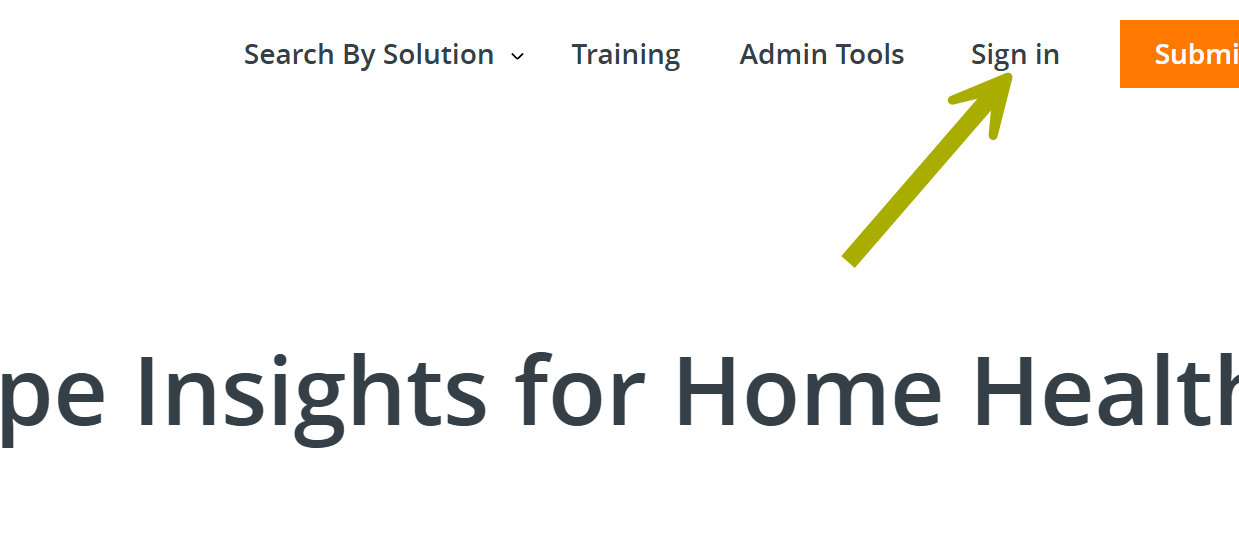
If you are not already signed in to the Help Center, click on the "Sign in" link at the top right of any Help Center page.
|
 |
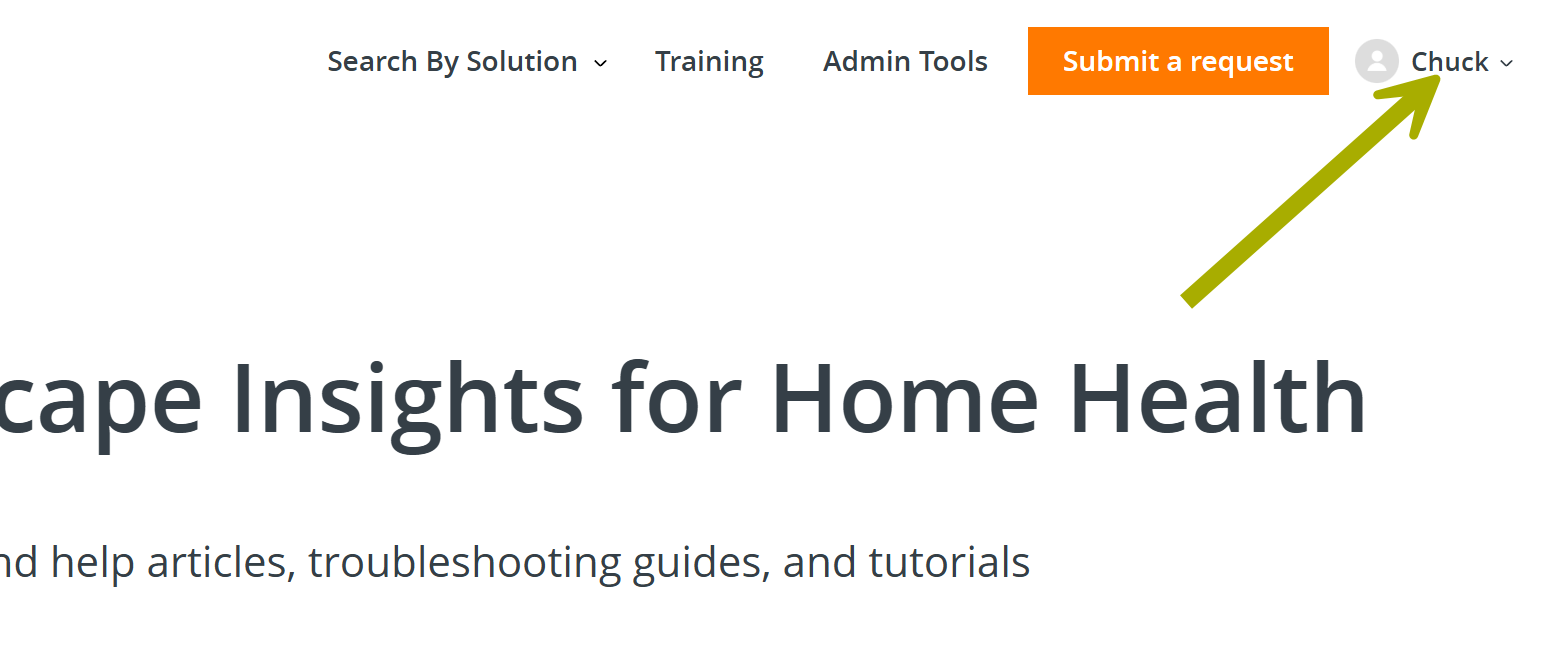
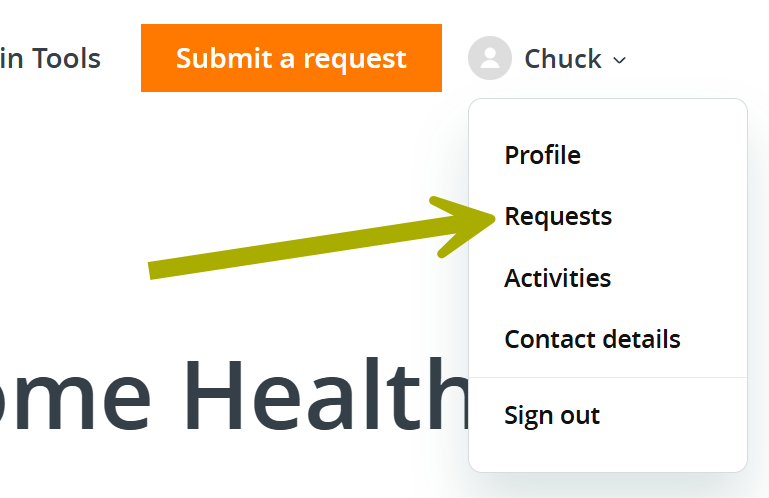
A drop down menu will open |
 |
A page will open (image below) that shows all of your open tickets. |
 |
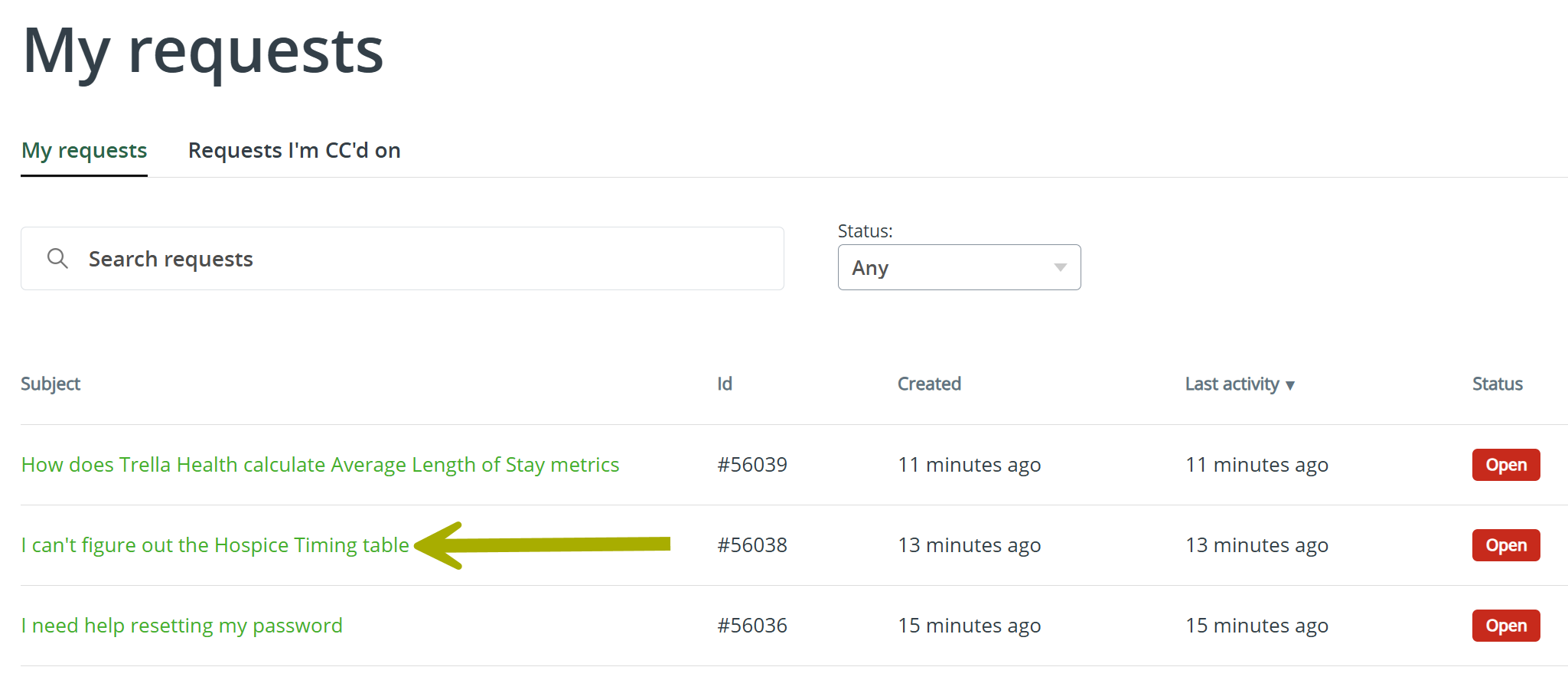 | |
| Each of the entries under the "Subject" column is a link that will open the Support request showing more details of the ticket. | |
Creating an Account
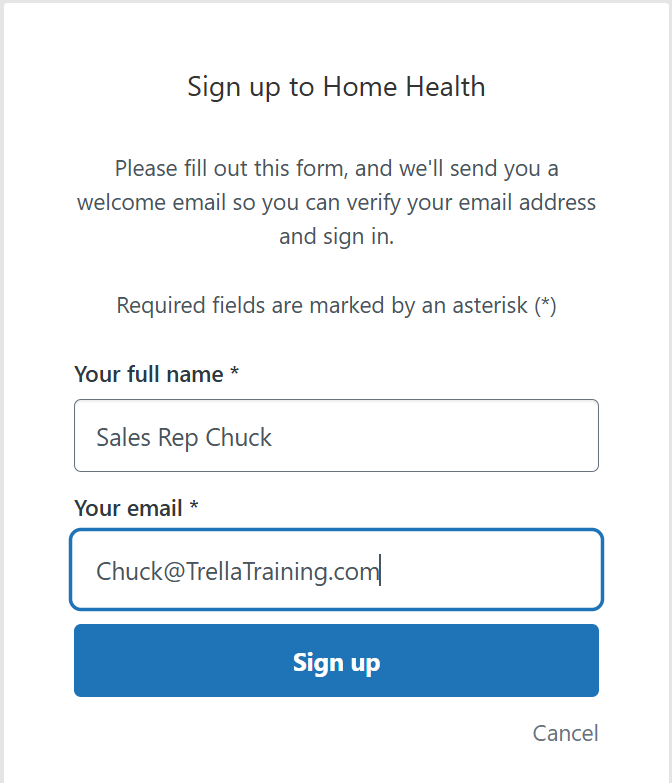
Setting up an account in the Trella Health Support/Help Center website is required if you want to view your Support requests online. Follow the steps below to create and account
| |
|
|
|
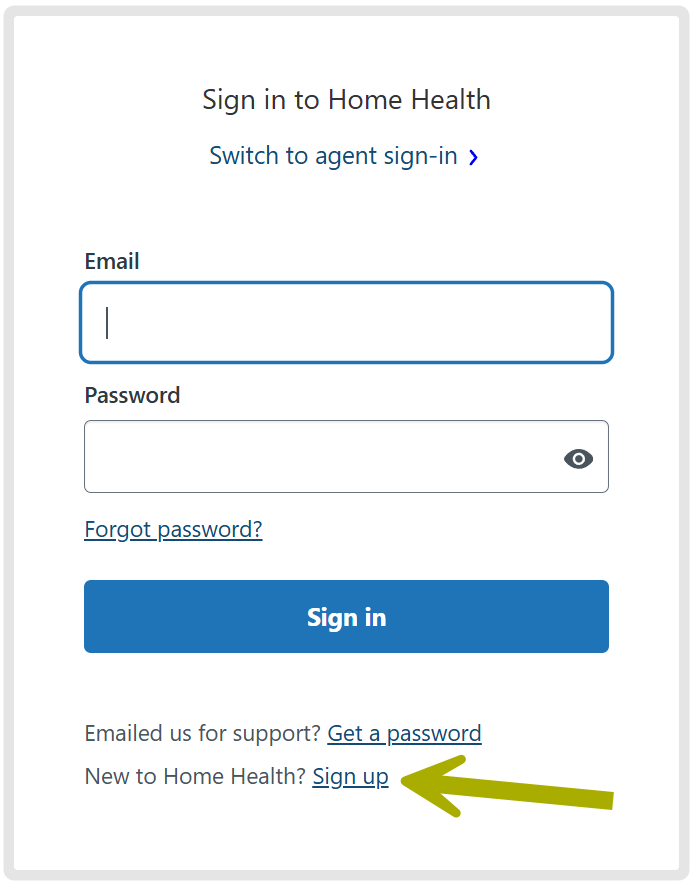
A page will open that shows the interface displayed at right.
Two other options are shown in the next two rows.
|
 |
|
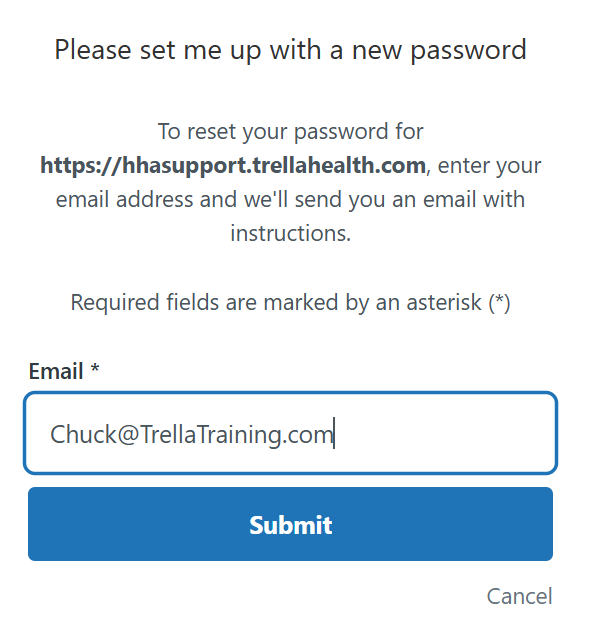
A new page will open (shown at right)
You will receive an email that includes a link to "Set a new password."
|
 |
|
You will receive an email that includes a link to "Set a new password."
|
 |