
Overview
The content of this article is focused on the Physician Groups Explore page filters in Trella Insights for Hospice. In this article we will provide suggested filter sets that are the most relevant for the Physician Groups Explore page. You can think of these filter "recipes" as best practices for finding the most relevant data on the page. If you want to create your own recipes, the second part of the article provides useful details about each available filter on the page.
 For an overview of how to use filters, see Filters - Overview and Strategy.
 Let's get Oriented
The image below shows the filters for the Physician Groups Explore page in Trella Insights for Hospice. With the Explore page open, click on the Physician Groups tab. The filters are located near the top of the page. Click on the "More Filters >" button to display all of the filters available. The filters let you narrow the table to the groups most relevant to your territory and objectives — by location, taxonomy, and patient volume.
Available Filters
The following image shows the filters available on the Physician Groups Explore page in Trella Insights for Hospice.

In this Article
- Filter Recipes — suggested filter combinations for common prospecting objectives
- List of Filters — details about each available filter on the page
Filter Recipes
As mentioned in the Overview and Strategy article, there are many possible combinations of filter settings. The recipes below represent the most useful starting points for physician group prospecting. Unless you are working from an already established default location, your first step for each recipe will always be to set up the location filter.
Recipe 1 — Objective: Find high-volume physician groups in your territory with no assigned rep
- Confirm the Location filter settings for your region of interest.
- Set the Range Filters to a minimum Hospice FFS Patients — Overall count. Start with a threshold that reflects a meaningful volume for your market — you will likely need to adjust this number to get useful results.
- Set the Assigned Users filter to Unassigned.
- Click the "Apply Filters" button.
 The result is a ranked list of high-volume physician groups in your territory that no one on your team is currently working. These are your highest-priority unworked opportunities.
Recipe 2 — Objective: Find physician groups by specialty in your territory
- Confirm the Location filter settings for your region of interest.
- Set the Taxonomy filter to the specialty or specialties most relevant to hospice referrals in your market (for example: Internal Medicine, Family Medicine, Neurology).
- Click the "Apply Filters" button.
Use this recipe when you want to focus outreach on a specific clinical specialty. Combine with a Range Filter on patient count to further narrow results to groups with meaningful hospice volume.
Recipe 3 — Objective: Find physician groups sending most of their patients to a competitor
- Confirm the Location filter settings for your region of interest.
- Sort the table by Hospice FFS Patients — Overall (descending) to bring the highest-volume groups to the top.
- Review the FFS Highest Affiliation HOS and FFS Highest Affiliation HOS % columns. Groups with a high affiliation percentage to a competitor are sending concentrated volume elsewhere.
These are your clearest leakage opportunities. A high affiliation percentage to a single agency means the group has an established referral pattern — and a compelling case for your agency is the way to shift it.
 |
List of Filters
| Filter Name / Details | Image |
|
Location
|
|
|
Taxonomy
|
Click on the "Apply Filters" button to filter the table by your chosen taxonomies. |
|
Range Filters
|
|
|
Assigned Users
|
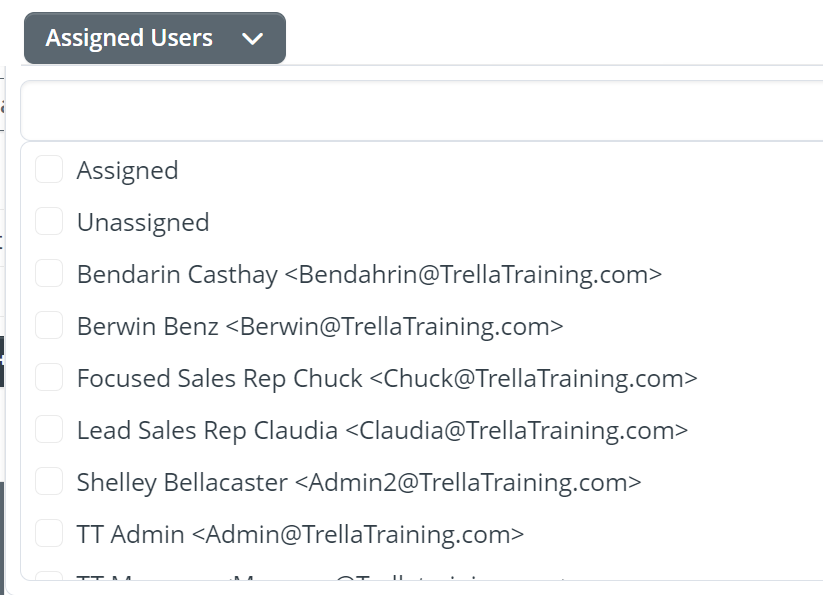 |
|
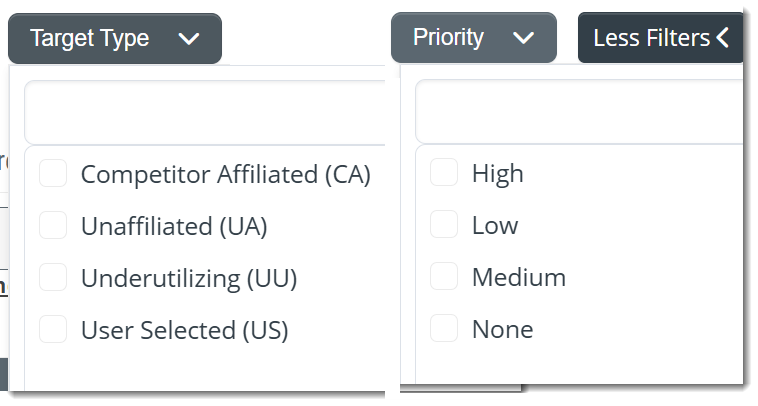
Target Type and Priority If you have set up any of the physician groups in the table as "Targets" you might have assigned a type and/or priority level to the targeted group during the setup process. These two filters allow you to limit the table to physician groups that match a type or priority level you assigned to the groups.
|
 |
 The current location details are displayed at the top of the panel.
 Once you have made any changes to the Locations filter, you can click on the "Save as My Default Location" button to save your settings. You can then easily activate your default in future sessions.
 Use the filter search to immediately pinpoint a specific location.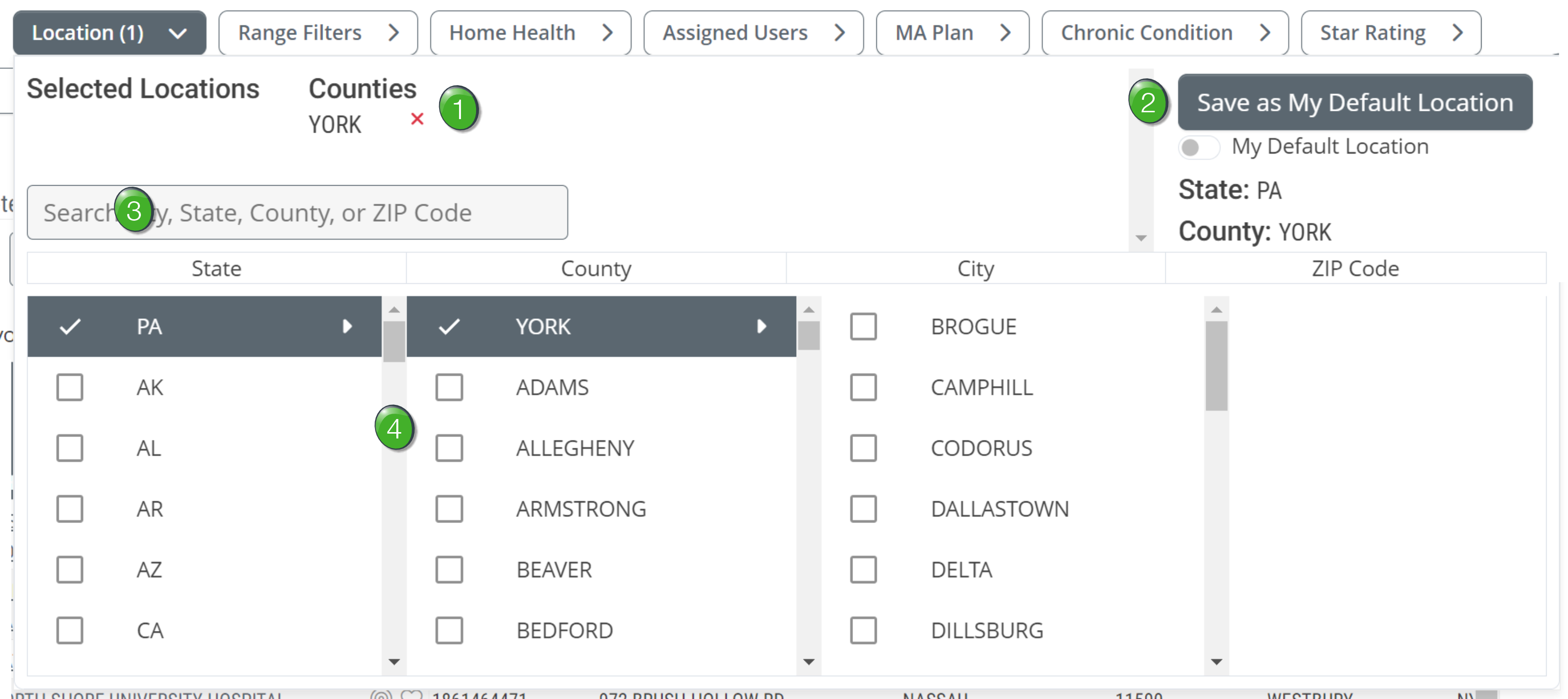
 Choose a specific state, county, city or ZIP code by clicking on the checkbox to the left of the desired location.
 The top of the panel shows what taxonomy or taxonomies you have chosen, along with any specializations
 Use the search field to find a specific taxonomy.
 Click on the check box to the left of any taxonomy you want to include in the filter. Click on the triangle to the right of the name to open the specializations for the taxonomy.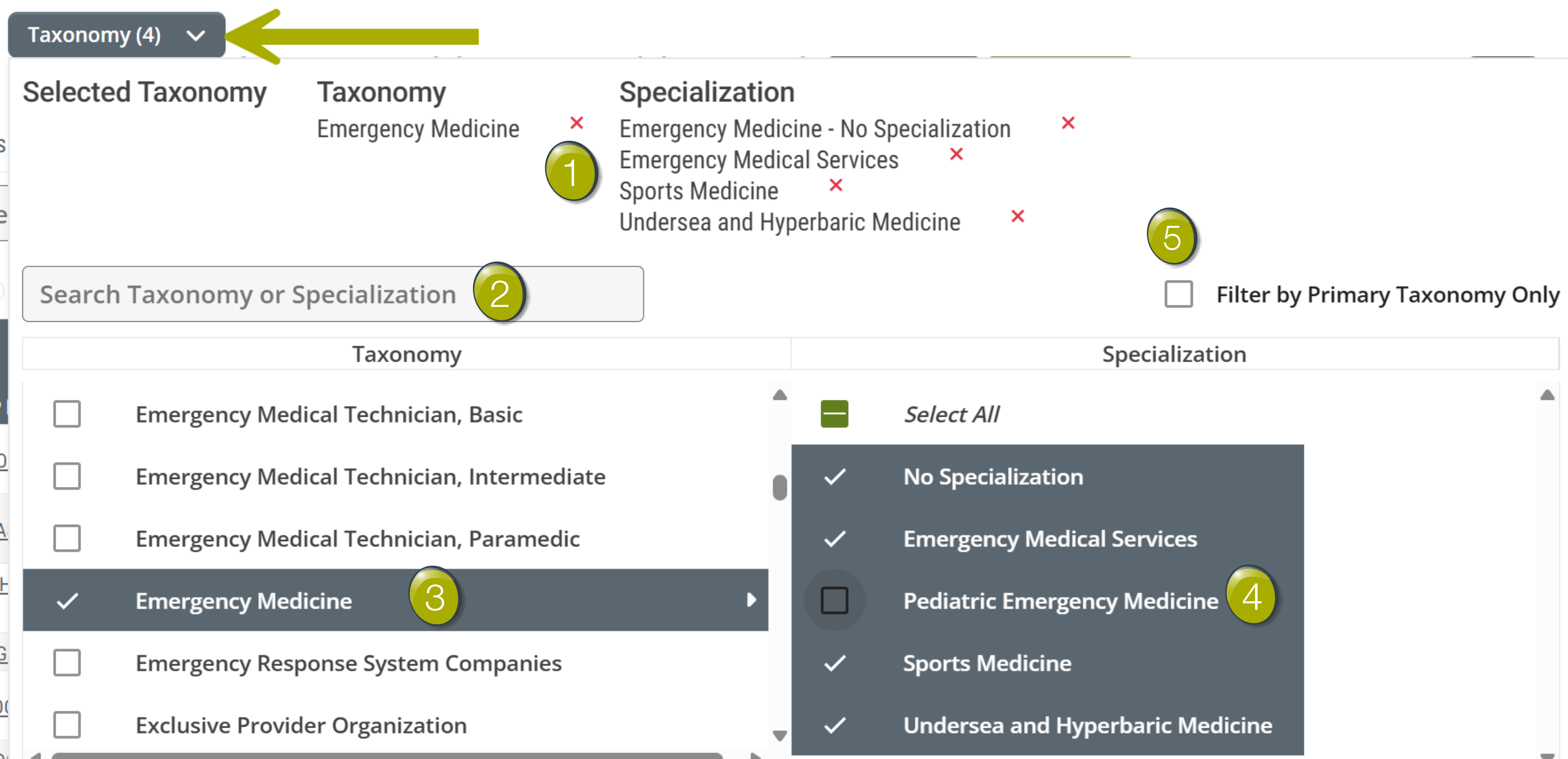
 Click on the checkbox to the left of any specialization to toggle that specialization on or off.
 Filter by Primary Taxonomy Only - With the checkbox on, the filter will only show the taxonomy shown in the left column.
 Setting minimum and maximum values for Hospice FFS Patients — Overall is a quick way to focus on physician groups with meaningful referral volume in your market.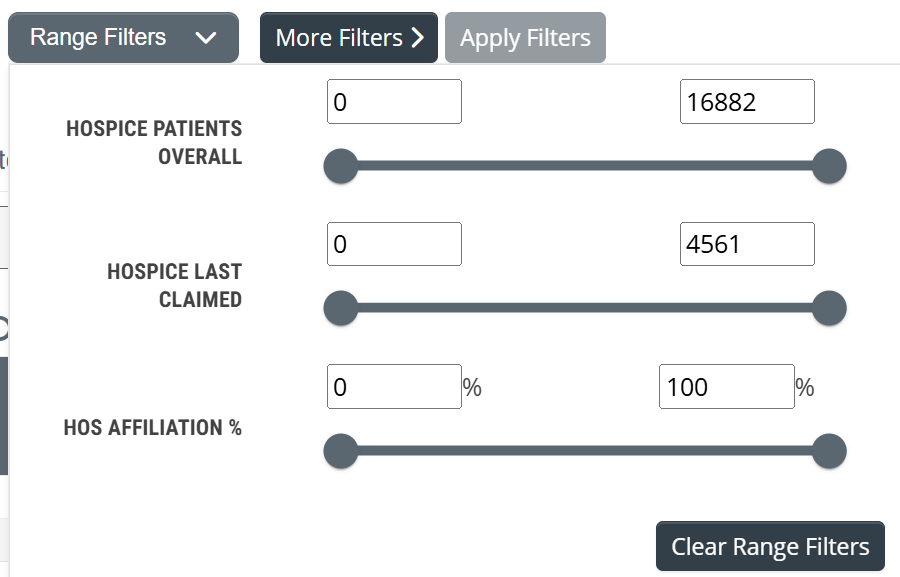
|