
Overview
The content of this article is focused on the Assisted Living/Long Term Care Explore page filters in Trella Insights for Home Health.
 For an overview of how to use filters, see Filters - Overview and Strategy.
Available Filters
The following image shows the filters on the Assisted Living/Long Term Care Explore page in Trella Insights for Home Health.

 In this article
Filter Recipes
The only filter on the Assisted Living/Long Term Care Explore page in Trella Insights for Home Health is the location filter. Therefore, there are no recipes to create using the filters.
List of Filters
| Filter name/Details | Image |
| Location (See below) | The location filter is explained below. |
The Location Filter
The location filter allows you to select the region for which you want to display results in the table.
- You can select as many states as you want by checking the check box to the left the state's abbreviation. When you add a state, counties from that state are then available in the County column.
- Select as many counties as you want. As you add counties, the Cities column will populate with cities in those counties
- If you choose cities, the ZIP codes for those cities will be displayed.
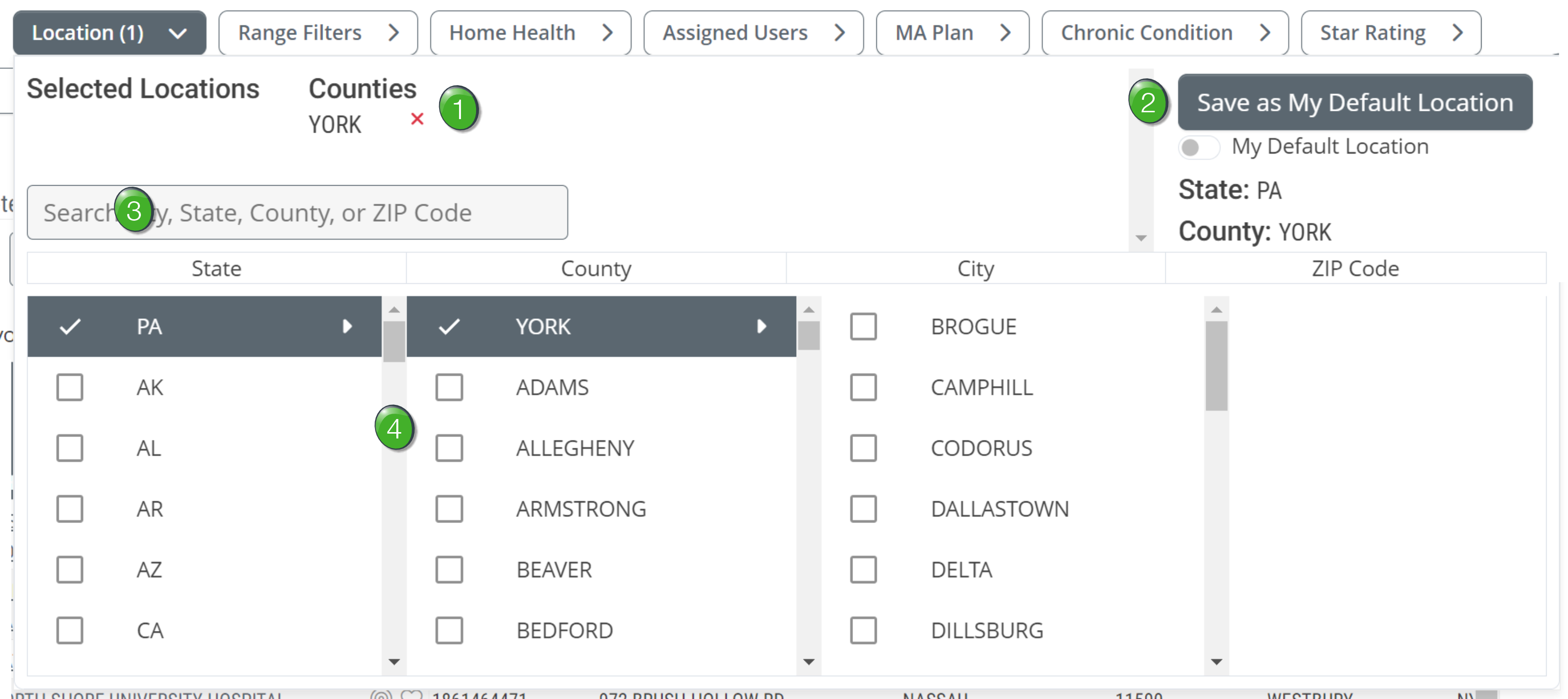
 Selected Locations - the list of locations that you select will be displayed at the top of the dialog box.
 Default Location - Once you choose your region, click on the "Save as My Default Location" button to save your selection as your default location. This default location will be used automatically on all Explore pages unless you turn it off or change it.
 Location Search - If you enter the name of a county or city, or the numbers in a ZIP code, matching locations will appear from which you can select the correct match. (See image.)
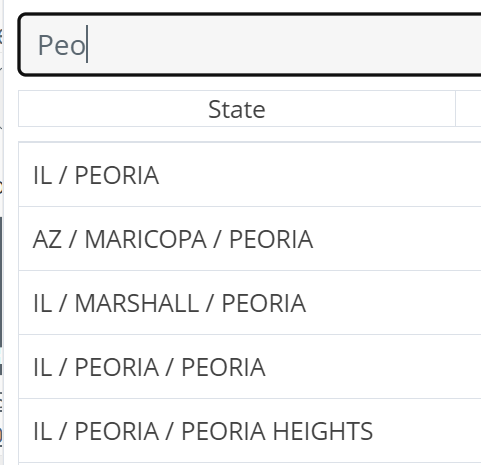
 As shown, you can enter a partial word in the search and the selection will be displayed.
 Locations Interface - Add the states, counties, cities, and ZIP codes by clicking on the checkbox to the left of each item.